If you are searching for how to block apps on iphone, you probably want more than a technical fix. You may be trying to protect homework time, sleep, family meals, or a child who cannot yet stop scrolling without help. Apple gives parents several useful controls, but the setting works best when it supports a clear family agreement. The goal is not perfect control. It is helping a young person practice stopping, choosing, and recovering when a limit feels frustrating.
Start with the boundary, not the button
Before opening Settings, name the problem in plain language. Is Snapchat interrupting sleep? Is Roblox stretching a 30-minute break into two hours? Is YouTube making it difficult to start homework? Different problems call for different limits.
Try saying, “I am not trying to remove everything you enjoy. I am noticing that this app is making bedtime and mornings harder, so we are going to create a limit and review it together.” That sentence does two important things: it states the adult responsibility and avoids labeling the child as irresponsible.
For an 8-year-old, a parent may choose a firm block during school nights. For a 14-year-old, a scheduled limit with some input can build more ownership. Safety concerns, sleep disruption, bullying, or secret accounts justify a stronger boundary. Ordinary enthusiasm for a game usually calls for coaching rather than a dramatic confiscation.
When families ask how to block apps on iphone, I recommend deciding the time, place, and reason first. Then choose the least restrictive setting that can realistically solve the problem. If it fails repeatedly, increase the structure instead of arguing about the child’s character.
Use Screen Time to limit or block an app
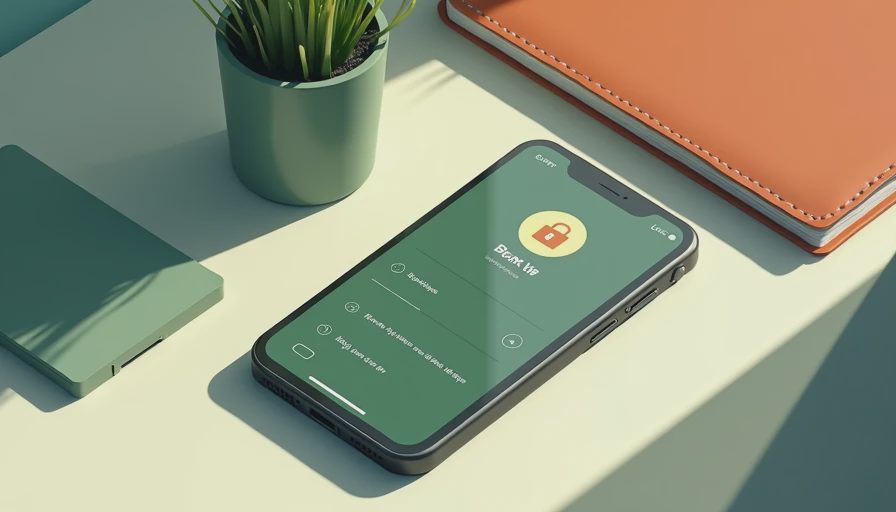
Apple’s Screen Time tools are the main starting point. On the child’s iPhone, open Settings, choose Screen Time, and turn it on if necessary. Set a Screen Time passcode that your child does not know. If your family uses Family Sharing, you can often manage a child’s settings from the parent’s device under Settings, your Apple Account, Family, and the child’s name. The exact menu wording can change with iOS updates.
To restrict a particular app, open App Limits, choose Add Limit, select a category or individual app, and set a short allowance. A one-minute limit is commonly used when the goal is effectively to block an app after access begins, although the child can request more time. You can approve or deny that request from the parent device when family controls are set up correctly.
For a complete pause during certain hours, use Downtime. Select the days and start and end times, such as 9:00 p.m. to 7:00 a.m. During Downtime, most apps are unavailable except those you place in Always Allowed. Keep phone, messages, maps, or another safety-related tool available when appropriate. The point is a predictable quiet period, not making the phone useless in an emergency.
This is the practical answer to how to block apps on iphone when you want a schedule rather than permanent deletion. It also lets you explain the rule: “Games are available after homework and outside the sleep window.” A visible routine is easier to follow than a parent making a new decision every night.
Remove access to downloads and workarounds
A limit is less useful if a child can download another version of the same distraction. In Screen Time, open Content & Privacy Restrictions and turn the feature on. Under iTunes & App Store Purchases, set Installing Apps and Deleting Apps to Don’t Allow if those choices appear on your version of iOS. You can also restrict in-app purchases, which helps prevent accidental or impulsive spending in games.
Use App Store age ratings thoughtfully. A rating is a starting point, not a complete family decision. A game rated for a child’s age can still contain chat, competitive pressure, advertising, or purchases your household does not want. Review the app’s communication features and privacy settings separately.
If an app is already installed, you can delete it from the Home Screen or App Library, then use Screen Time restrictions to reduce the chance of immediate reinstallation. Blocking the App Store entirely is a heavier step and can create problems when a child needs an approved school or transportation app. A narrower restriction usually creates less friction.
When considering how to block apps on iphone, remember that a determined older teen may look for access through a browser, a second device, a friend’s phone, or a web version. That does not mean controls are pointless. It means the conversation must include the purpose of the boundary and what your child should do when they want an exception.
Build a plan for exceptions and pushback
No system works well if every request becomes a courtroom argument. Decide in advance what counts as a reasonable exception. A child might receive extra game time on a long car ride, use messaging after a group-project deadline, or temporarily access a blocked app for a supervised family activity. An exception should be specific, time-limited, and approved before the conflict peaks.
You can say, “The limit is still active. I am approving 30 extra minutes because your team has a scheduled game. When it ends, the phone returns to the normal plan.” This teaches that flexibility is different from surrendering the rule.
If your child becomes angry, keep the explanation short. “I hear that you are disappointed. The limit is staying tonight. We can talk about changing it Saturday.” Do not lecture while everyone is activated. If the child bypasses the passcode, address the behavior calmly but directly: restore the setting, ask how access happened, and add one related safeguard. Avoid turning a single workaround into a permanent accusation of dishonesty.
Tonight, this week, revisit later
Tonight, write down one target: sleep, schoolwork, family connection, or spending. Set one App Limit or Downtime schedule, create a passcode, and tell your child exactly when the boundary begins. If you are learning how to block apps on iphone tonight, do not attempt to redesign every digital rule at once.
This week, observe what happens. Does the child sleep more easily? Does homework start with less negotiation? Is the restricted app truly the problem, or is the phone being used to avoid a difficult transition? Look for patterns rather than demanding instant perfection. A limit that causes constant conflict may need a clearer schedule, a different app setting, or a better offline alternative.
Revisit later, perhaps after two weeks, with three questions: What worked? What felt unfair? What responsibility can your child take next? A mature answer might earn a later bedtime window, a slightly longer limit, or responsibility for turning in the phone at night. A continued pattern of bypassing limits may call for tighter controls and a direct conversation about trust.
The best answer to how to block apps on iphone is not simply “make the app disappear.” It is a structure that protects the family’s priorities while giving a child practice with real decisions. Coach the skill, not just control the screen. Start with the next conversation, not the next restriction.


No letters yet — be the first guest to write.