If you are searching for how to put parental controls on iPhone, you probably want two things at once: a safer phone and a calmer home. Apple’s Screen Time tools can limit apps, filter websites, schedule breaks, and require permission for purchases. They cannot teach judgment by themselves. The strongest setup combines clear settings with a conversation your child can understand.
For a first phone, I recommend starting with a small number of boundaries rather than activating every restriction at once. A 10-year-old, a 14-year-old, and a 16-year-old need different levels of independence. Begin with safety and sleep, then add limits when a real problem appears. Coach the skill, not just control the screen.
Before you change settings, make a family plan
Talk with your child before the phone becomes a locked box. You might say, “I am going to help set this up so you can use your phone safely. We will review the rules together, and more freedom comes with showing responsible choices.” That sentence makes the boundary clear without turning your child into a suspect.
Agree on three practical basics. First, decide where the phone sleeps. A charging station in the kitchen or hallway can protect bedtime without requiring a midnight argument. Second, decide which apps are allowed now and which require a conversation first. Third, agree on what happens when something upsetting appears: stop, save evidence if needed, tell a trusted adult, and avoid replying in anger.
Write the family rules in plain language. “No phone after 9 p.m. on school nights” is easier to follow than “Use your phone responsibly.” Include exceptions for a late pickup, travel, or a genuine family need. If another caregiver shares responsibility, discuss the settings together so your child does not receive contradictory instructions.
How to put parental controls on iPhone with Screen Time
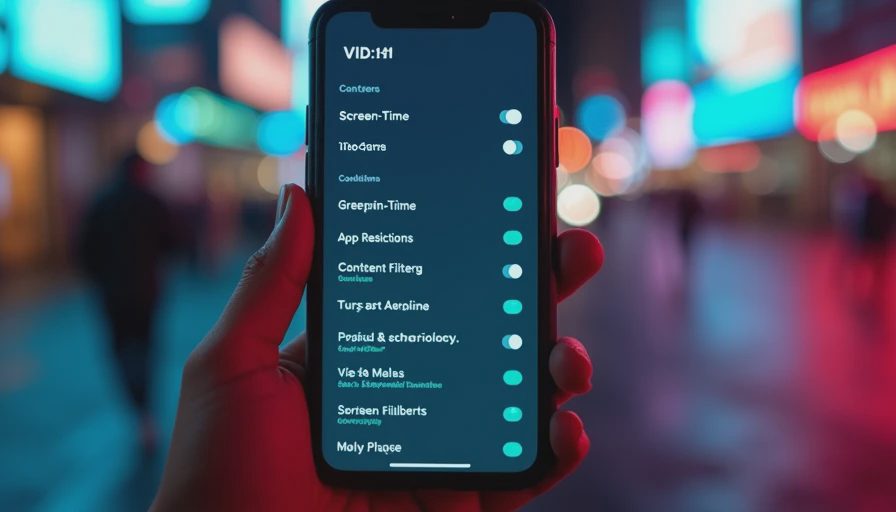
To learn how to put parental controls on iPhone, begin by opening Settings and selecting Screen Time. If your child is in your Apple Family group, tap the child’s name under Family. Otherwise, choose the option to turn on Screen Time for that device. Apple’s labels can shift slightly between iOS versions, but the main tools remain in this area.
Create a Screen Time passcode that your child does not know. Do not use the same code as the phone unlock code, and avoid an obvious birthday. Keep it somewhere secure; the passcode is meant to prevent casual changes, not to create a secret surveillance system.
Turn on Downtime and choose realistic hours. A school-night schedule from 9 p.m. to 7 a.m. might work for one family, while a younger child may need an earlier start. During Downtime, only approved apps and calls remain available. Add important contacts and school-related tools to the always-allowed list, but do not fill that list with every entertaining app.
Next, open App Limits. You can set a daily limit for categories such as Games, Social Networking, or Entertainment, or choose individual apps. A broad two-hour limit can be less useful than a 30-minute limit for a particular game that regularly causes arguments. Ask your child which app feels hardest to stop, then start there.
Content, purchases, and communication boundaries
Under Screen Time, open Content & Privacy Restrictions and turn the feature on. Review the settings rather than accepting a one-size-fits-all block. In iTunes and App Store Purchases, you can require a password, prevent installing or deleting apps, and restrict in-app purchases. For younger children, asking before downloads is a sensible default. It also prevents an unexpected $40 game purchase or recurring subscription.
In Store, Web, Siri, and Game Center restrictions, review allowed content ratings for apps, music, movies, television, books, and web access. Under Web Content, Limit Adult Websites can filter mature material while still allowing ordinary browsing. For a younger child, the option to allow only approved websites may be appropriate, although it takes more maintenance when school assignments require new sources.
Communication Limits can help define when your child may contact family, friends, or other people. Communication Safety can offer warnings around sensitive images on supported Apple devices. These tools are useful guardrails, but they do not replace a direct plan for receiving an unwanted image, a threat, or a request for private information. Tell your child exactly who they can contact for help.
If your family uses Apple Family Sharing, Ask to Buy can require approval for eligible purchases and downloads. It is a permission tool, not a complete review of every app’s privacy or chat features. Before approving Discord, Roblox, Snapchat, or another service, look at its age guidance, messaging options, location features, and account settings together.
How to put parental controls on iPhone for sleep and school
Many parents first search how to put parental controls on iPhone after a child is staying up late. Start with the behavior you can observe. If homework is interrupted by notifications, use Focus settings or schedule a school-time boundary. If gaming stretches into bedtime, combine a game limit with charging the phone outside the bedroom. If a child needs the device for an alarm, use a separate alarm clock so the phone does not need to stay within reach.
Do not make the daily limit so strict that your child immediately learns to bypass it. A better approach is to set a reasonable starting limit, explain when it resets, and review actual use after a week. Screen Time reports can show categories and pickups, but avoid turning every number into a moral judgment. Ten pickups during a busy school day tell you something different from three hours of late-night scrolling.
For schoolwork, create a clear exception rather than removing every limit. Your child might use Safari for research but not social media during homework time. Ask what assignments require, then adjust the rule. The aim is to teach planning: finish the work, use the needed tool, and return to the agreed boundary.
What controls cannot solve
Searches for how to put parental controls on iPhone often come from a reasonable fear that one setting will prevent every problem. It will not. A child may use a friend’s phone, another device, a school computer, or a new account. Filters can miss content, and strict limits can create a technical contest if the relationship underneath is already tense.
That is why I would not secretly read every message as a routine habit. There are situations involving immediate safety, exploitation, threats, or serious self-harm concerns where an adult needs to act quickly and involve appropriate support. But ordinary supervision works better when children know what may be reviewed, why it matters, and how privacy will grow with responsibility.
Have a weekly check-in that lasts ten minutes. Ask what felt fun, awkward, confusing, or hard to stop. Ask whether anyone requested a password, private photo, location, or favor. Praise a report even when the original choice was imperfect. If your child tells you about a mistake and receives only punishment, the next problem is more likely to stay hidden.
Tonight, this week, and revisit later
Tonight, complete the basic setup: Screen Time passcode, Downtime, App Limits, purchase approval, and a charging location. Then explain the reason for each choice. This is the practical answer to how to put parental controls on iPhone, but the explanation is what makes the settings usable.
This week, review the Screen Time report with your child. Look for patterns rather than isolated numbers. Adjust one setting if the first version created unnecessary friction. You might shorten a game limit, allow a school website, or move Downtime later for a weekend while keeping school-night expectations firm.
Revisit later when your child shows consistent follow-through. More independence might mean managing a limit, choosing the charging time, or requesting a new app with a thoughtful explanation. Independence should be earned through observable skills, not granted because everyone is tired of arguing.
The goal is not a perfect digital childhood or a phone that never causes conflict. It is a child who can pause, ask for help, protect private information, and make better choices when an adult is not standing nearby. Start with the next conversation, not the next restriction.



No letters yet — be the first guest to write.