If you are searching for how to set parental controls on iphone, you probably want two things at once: a safer phone for your child and a relationship that does not depend on constant phone battles. Apple gives parents useful tools through Family Sharing and Screen Time, but settings are only part of the job. A limit your child understands is more likely to become a habit than a rule that appears without explanation.
I recommend setting up the phone together when possible. Tell your child, “I am going to help you build some guardrails while you practice making decisions. We will review them as your responsibility grows.” That framing is different from “I do not trust you,” and it gives the controls a purpose.
Before you change a single setting
Start with the family decisions, not the menus. Decide whether the phone is for calling, school communication, music, games, social media, or all of those activities. An 8-year-old with a first phone may need contacts and location coordination but no social media. A 14-year-old may need more independence while still having firm overnight and spending boundaries.
Ask three questions. What does your child need the phone to do? Which situations create the most trouble, such as late-night gaming or unfamiliar messaging? Which skills are you trying to coach, such as stopping when a timer ends or asking before downloading an app?
Write down a few household expectations before opening Settings. Phones charge outside bedrooms overnight. New apps require a conversation. A child reports frightening, sexual, or threatening content rather than hiding it. These agreements matter because Apple can restrict access, but it cannot teach your child what to do when a friend sends an upsetting message.
How to set parental controls on iphone using Screen Time
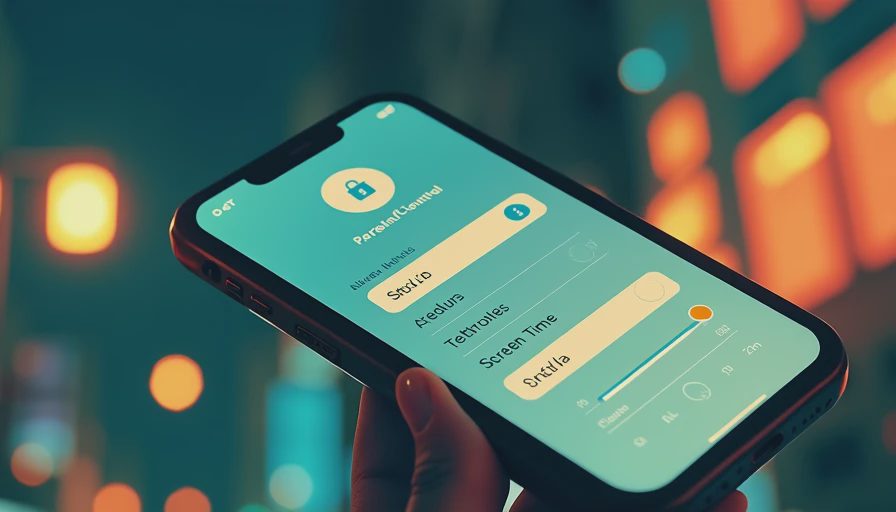
On your iPhone, open Settings, tap Screen Time, and choose your child’s name if you use Family Sharing. If your child has an Apple Account in your family group, managing Screen Time from your own device is usually easier. Turn on Screen Time and create a separate Screen Time passcode that your child does not know. Do not reuse your iPhone unlock code.
If Family Sharing is not set up, you can configure Screen Time directly on the child’s phone. Apple changes menu wording occasionally, so look for Screen Time, Family, and Content & Privacy Restrictions if a label is slightly different on your version of iOS.
The most helpful starting tools are Downtime, App Limits, Communication Limits, and Content & Privacy Restrictions. Downtime can block most apps during sleeping hours while allowing approved essentials. App Limits can place a daily boundary on categories such as Games or Social Networking. Communication Limits can restrict contacts during screen time and downtime, though emergency communication settings deserve careful attention.

Choose limits that match real family life
A rule that ignores homework, sports, travel, and weekends will fail by Thursday. Instead of setting one dramatic limit, look at your child’s actual rhythm. You might allow 45 minutes of games on school nights, a longer weekend window, and no recreational apps from 9 p.m. to 7 a.m. The exact number is less important than whether your family can explain it and follow it.
Use Always Allowed for practical tools such as Phone, Messages for approved contacts, Maps, or a school application. Be cautious about leaving entertainment apps available during Downtime just because they seem educational. YouTube, browsers, and games can quickly turn a five-minute break into an hour.
Ask your child what feels fair, then hold the important boundary. Collaboration does not mean handing over the final decision. For example, your child might choose whether the daily game window happens before dinner or after homework, while the no-phone bedroom rule remains firm.
Content, purchases, and privacy settings
Under Screen Time, open Content & Privacy Restrictions and turn the feature on. This area can help limit app installations and deletions, in-app purchases, account changes, web content, and explicit music, podcasts, books, or videos. You can also set an age rating for apps. Choose a setting that reflects your child’s maturity, not simply the oldest age available.
For many families, Ask to Buy through Family Sharing is a practical middle ground. Your child can request an app or purchase, and you can discuss why it is useful, what data it collects, and whether it fits the family plan. Review subscriptions too. A free-looking game can include recurring purchases, and a child may not understand that a seven-day trial can become a charge.
Web Content settings can reduce access to adult sites, but no filter catches everything. Talk about what your child should do after seeing something disturbing: close it, take a breath, and come to you without losing the phone automatically. That promise does not remove accountability; it keeps embarrassment from driving secrecy.
What to say when the setting causes friction
Learning how to set parental controls on iphone is often easier than explaining them after the first blocked app. Expect a complaint. Your calm response matters more than a perfect sentence. Try, “I hear that this feels restrictive. The limit is here because sleep and school responsibilities come first. We can review it on Sunday, but we are not changing it during an argument.”
If a child says everyone else has unlimited access, avoid debating every classmate. Say, “Other families make different choices. Our job is to choose a plan that fits your age, responsibilities, and readiness.” If your teen finds a workaround, focus first on the behavior and the need. Ask how they bypassed the limit, what they were trying to accomplish, and what repair is appropriate. Reset the passcode and revisit trust without turning the conversation into a character judgment.
No setting should be used to secretly read every conversation as a default. Safety concerns can justify closer supervision, especially after threats, exploitation, self-harm content, or serious harassment. Explain what you are checking and why, and narrow the intrusion when the immediate concern passes.
Tonight, this week, and revisit later
Tonight, gather the family devices, check that each child has the correct Apple Account, and turn on a charging location outside bedrooms. Then choose one limit that solves the most immediate problem. If bedtime is chaotic, start with Downtime instead of trying to redesign every app.
This week, review app permissions, purchases, web content, and approved contacts. Sit beside your child and test the settings. Can they request more time? Do they know how to block and report an account? Can they identify a trusted adult if a group chat becomes unsafe? These are digital judgment skills, not just technical chores.
Revisit later on a predictable schedule, perhaps every four to six weeks or after a major change such as a new school year. Look at sleep, responsibilities, honesty, and how your child handles frustration. More independence should follow demonstrated skills, not simply a birthday. You might loosen a game limit while keeping overnight charging or purchase approval.
The goal of how to set parental controls on iphone is not perfect control. It is a clear structure that gives your child repeated practice with stopping, choosing, asking, and recovering from mistakes. Coach the skill, not just control the screen. Start with the next conversation, not the next restriction.


No letters yet — be the first guest to write.