Learning how to set up parental controls on iphone is useful, but the settings are only half the job. The other half is explaining what the limits are for, what your child can expect, and when the family will revisit them. A phone should not become a tiny courtroom in your kitchen. It can become a place to practice judgment, with reasonable guardrails while your child is still learning.
Apple’s Screen Time tools can limit apps, schedule downtime, filter websites, restrict purchases, and control communication. Before opening Settings, decide what problem you are solving. Is bedtime turning into scrolling? Is your 10-year-old downloading games without asking? Is your 14-year-old receiving messages from people your family does not know? A specific concern leads to a better rule than turning on every restriction at once.
Start with a family plan before touching Settings
Choose a calm moment, not the instant you discover a late-night video session. You might say, “We are setting up some phone boundaries because sleep, school, and safety come before entertainment. I will show you the settings, and we will talk about what should change as you show responsibility.” That language makes the phone a shared responsibility rather than a secret surveillance project.
Write down three or four starting agreements. For example, the phone charges in the kitchen overnight, new apps require permission, school hours are distraction-free, and a child can bring an uncomfortable message to an adult without losing the phone automatically. These agreements matter because technical restrictions cannot teach a child what to do when a friend sends an inappropriate image or a group chat becomes cruel.
For younger children, parents usually need the passcode and account control. With older teens, explain exactly what you will review and when. Avoid promising complete privacy if you are not prepared to keep it, but also avoid reading every conversation simply because a feature makes it possible. Coach the skill, not just control the screen.
How to set up parental controls on iphone with Screen Time
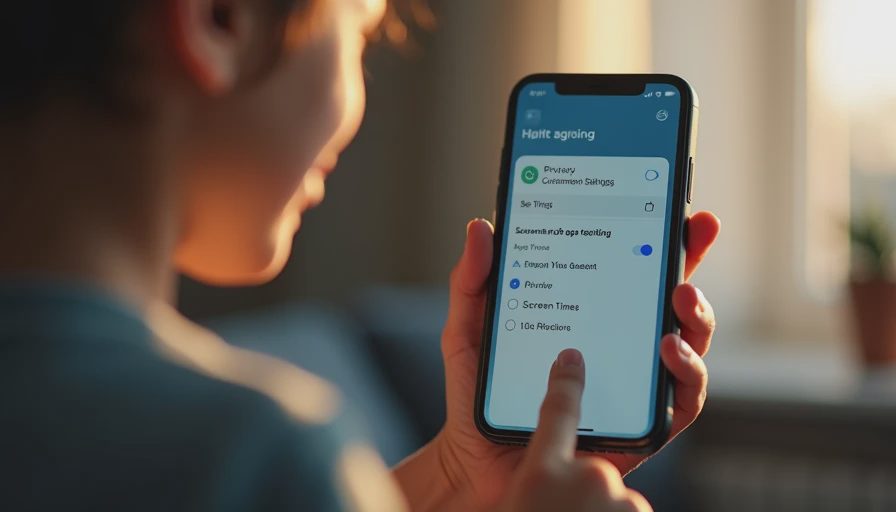
Open Settings, tap Screen Time, and choose the child’s device or select This Is My Child’s iPhone when prompted. If your family uses Family Sharing, you can manage a child’s settings from the family organizer’s device. Set a Screen Time passcode that your child does not know. Do not reuse the phone’s unlock code, and store the passcode somewhere secure so another adult in the household can access it when necessary.
Review the Screen Time summary first. The report can show time by app category, pickups, notifications, and websites. Treat it as information, not a courtroom exhibit. A large number beside YouTube might reflect music, homework help, or entertainment. Ask what was happening during that time before deciding whether the number itself is a problem.
Then open Downtime. This schedules a period when most apps are unavailable, although you can allow selected apps and contacts. A practical starting point might be 9 p.m. for a middle-schooler or 10 p.m. for an older teen, with the phone charging outside the bedroom. Do not block essential communication without thinking through transportation, medical needs, or family logistics.
Build limits that match the child and the situation
Under App Limits, you can set daily limits for categories such as games, social networking, or entertainment, as well as individual apps. A blanket two-hour limit can sound fair but work poorly if your child uses the same device for school and recreation. Consider separate expectations: homework apps remain available, while games pause after a set amount of leisure time.
Content and Privacy Restrictions provide more controls. You can restrict explicit music, movies, books, and web content; prevent in-app purchases; limit installing or deleting apps; and require a password for purchases. For an 8-year-old, “Ask Before Buying” and no unsupervised app downloads may be sensible. For a 15-year-old, you might allow downloads while requiring a conversation before joining a new social platform.
Communication Safety can help identify sensitive images on supported Apple devices, but it is not a substitute for conversation or guaranteed protection. Explain that the tool is designed to offer a warning and a chance to pause. Tell your child what to do if a message feels threatening, sexual, humiliating, or confusing: stop responding, save information when appropriate, and bring it to a trusted adult.
How to set up parental controls on iphone for messages and contacts
Communication Limits can control who your child can contact during Screen Time and Downtime. These settings are helpful for preventing casual overnight group-chat activity, but they need careful testing. Confirm that your child can still reach parents, caregivers, emergency contacts, and any other person needed for transportation or safety.
Use the Contacts setting thoughtfully. A young child may need a short approved list, while a teenager may need room to communicate with classmates, coaches, and relatives. The boundary can be about timing rather than total access: no nonessential group chats during homework or after bedtime. If a contact restriction blocks something important, fix it promptly rather than making your child solve the technical problem alone.
If your child uses Messages, FaceTime, Snapchat, Discord, Roblox chat, or another platform, review each service separately. Apple settings cannot control every feature inside every third-party app. Check the app’s own privacy, messaging, purchase, and notification controls, then ask your child to show you how reporting and blocking work. Demonstrating those tools is more useful than issuing a vague warning to “be careful online.”

What to say when your child pushes back
Some resistance is normal. A child may say, “Nobody else has these rules,” or “You do not trust me.” Answer the feeling without surrendering the boundary: “I understand that this feels restrictive. Trust grows when we practice safe choices, and sleep and respectful communication are family responsibilities.” You do not need to win a debate about every minute.
Offer a review date. Try the settings for two weeks, then look at what worked and what created unnecessary friction. If your child followed the charging routine and handled a difficult message responsibly, that evidence can support more flexibility. If the phone repeatedly disrupted sleep, keep the bedtime boundary and discuss a different adjustment, such as fewer notifications or moving a distracting app off the home screen.
When a rule is broken, focus on the behavior and repair. “You bypassed the limit and used the phone until midnight. Tomorrow, the phone will charge with me, and we will reset the passcode together. Then we will talk about what made the rule hard.” A consequence should be connected, time-limited, and explained—not a humiliating public punishment.
Tonight, this week, and revisit later
Tonight, open Screen Time, check the current usage report, set a passcode, and choose one boundary that addresses your family’s biggest concern. Do not attempt a complete digital overhaul at 10:30 p.m. when everyone is exhausted.
This week, review app downloads, purchase settings, communication permissions, and the charging location. Ask your child to demonstrate blocking, reporting, and privacy controls on the apps they actually use. Create a short family agreement in plain language and keep it somewhere both adults and children can find it.
Revisit later as school demands, friendships, maturity, and activities change. A first phone at age 10 should not have exactly the same settings at age 14. Parents can loosen one limit while holding another firmly; increased independence does not require abandoning every safeguard.
The goal is not a perfect digital childhood or a phone that never causes conflict. It is a child who gradually learns to notice pressure, protect sleep, ask for help, and make better choices. Start with the next conversation, not the next restriction.


No letters yet — be the first guest to write.