Parental filters for YouTube can make a real difference when your child is watching gaming videos, music clips, tutorials, or creator content. They cannot guarantee that every recommendation will fit your family, and they should not become a substitute for teaching judgment. The useful question is not, “How do I control every second?” It is, “What support does my child need at this age, and how will we review it together?”
For an 8-year-old, that support might mean YouTube Kids, approved content, and watching in a shared room. For a 14-year-old, it might mean a regular YouTube account, restricted settings, a clear rule about comments and live chats, and a conversation about what to do when a video becomes disturbing. The settings should grow as your child’s skills grow.
What parental filters for YouTube actually do
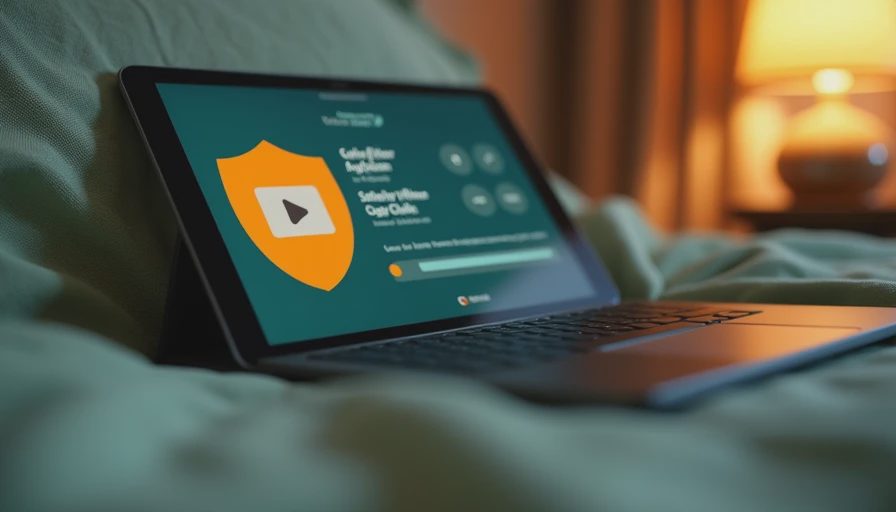
YouTube offers different experiences, including YouTube Kids, supervised accounts for children, and standard YouTube accounts. Available controls can change by account type, age, device, and region, so begin with the current settings in your child’s Google Family Link or YouTube account. Look for options involving content level, search, watch history, recommendations, autoplay, comments, and purchasing.
YouTube Kids is designed for younger children and gives parents choices such as allowing only parent-approved content, turning search off, setting a timer, and reviewing watch history. Those tools reduce the number of surprises, but automated systems and human review are not perfect. A video that looks harmless from its title or thumbnail can still contain language, frightening imagery, or a message you would not choose for your child.
Supervised experiences can provide more structure for older children while still giving them access to a wider range of videos. The important step is to test the setting yourself. Sign in on the child’s device, search for several ordinary topics, open recommendations, and check whether the controls behave as expected. A filter you have never tested is an assumption, not a family plan.
How to choose the right level of access
Age is a starting point, not the whole decision. Consider maturity, impulse control, sleep habits, past reactions to scary content, and whether your child can close a video and tell an adult when something feels wrong. A responsible 12-year-old may handle more independence than a distracted 15-year-old who keeps clicking increasingly extreme recommendations late at night.
For younger children, parental filters for YouTube work best when paired with a short approved list. You might choose science demonstrations, read-aloud channels, drawing lessons, and a few family-approved creators. Keep the app in a common area and turn autoplay off when possible. Autoplay can quietly transform a five-minute request into an hour of passive viewing.
For middle schoolers, parental filters for YouTube should be combined with boundaries around live streams, comments, direct contact, and links in video descriptions. Explain that a creator can be entertaining without being a trustworthy adviser. A child should know not to share a full name, school, location, phone number, or private photograph in a comment or chat.
For teens, focus less on pretending every questionable video can be blocked and more on building a repeatable response. Your teen can pause, leave the video, report it when appropriate, and tell you what appeared. That skill matters because no filter follows a young person perfectly across a friend’s phone, a school Chromebook, a smart television, and a logged-out browser.
Set up the controls, then test the edges
Start with the Google account your child actually uses. Confirm the birthday information, review connected devices, and check whether YouTube is signed in under a parent’s account. Many families create a rule for the child while the child is quietly watching through an adult profile, which makes the rule much harder to enforce.
Next, adjust one setting at a time. Turn off autoplay, review search permissions, select the appropriate content level, and decide whether watch history will be visible during your coaching period. If you use Family Link, review app limits and bedtime schedules separately from YouTube controls. A device-wide bedtime can be more effective than arguing about one additional video at 10:45 p.m.
Then run an edge test. Search for a favorite topic, a popular game, a scary story, a prank, and a celebrity. Follow two or three recommendations and inspect the comments or live features. You are not trying to defeat the platform; you are learning what your child will encounter. Write down the two settings that matter most so another caregiver can apply the same expectations.
Turn filters into a coaching conversation
A setting becomes more useful when your child understands its purpose. Try saying, “I am not assuming you will make bad choices. I am giving you guardrails while you practice noticing what is trustworthy.” That wording is more effective than announcing that the internet is full of dangerous strangers.
Ask your child to show you how they would handle three situations: a video that suddenly becomes graphic, a creator asking viewers to click an unfamiliar link, and a comment that invites private contact. Practice the answer out loud: pause, close the video, do not reply or click, and bring an adult into the situation. Rehearsal makes the response easier when a child is embarrassed or startled.
You can also use a weekly five-minute review. Ask what they watched, which creators they enjoy, and whether anything felt confusing or uncomfortable. Do not demand a complete transcript. The goal is to keep communication open enough that reporting a problem does not automatically lead to losing the device for a month.

Tonight, this week, and revisit later
Tonight, choose one device and confirm which account is signed in. Turn off autoplay, review the content setting, and tell your child what you changed and why. This is a manageable first step, especially if your household has multiple tablets, televisions, and school devices.
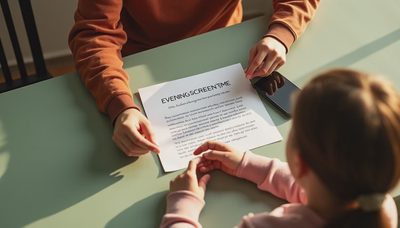
This week, create a short family agreement. Include where YouTube can be watched, whether headphones are allowed, what happens during homework and bedtime, and what your child should do with upsetting content. For example, “You can watch in the living room after homework. You can use headphones, but keep the volume low enough that I can get your attention. If a video becomes sexual, violent, or threatening, close it and tell me without fear of punishment.”
Revisit later, perhaps in four weeks or after a major change in behavior. If your child is following limits, explaining choices, and recovering well from mistakes, gradually offer more independence. If sleep, schoolwork, or mood is suffering, tighten the routine and investigate the pattern rather than simply blaming the app.
Common mistakes parents can avoid
The first mistake is treating parental filters for YouTube as a guarantee. Filters reduce exposure; they do not replace supervision, conversation, or common sense. The second is setting a rule that no adult in the household follows. If parents watch unrestricted clips at dinner but demand perfect behavior from children, the lesson becomes hypocrisy rather than digital judgment.
Another mistake is checking only the child’s main phone. A recommendation can appear on a game console, television, tablet, or friend’s device. You do not need to inspect every screen constantly, but you do need to know where access exists and which expectations travel with your child.
Finally, avoid turning every review into an interrogation. Ask curious questions, listen for gaps, and name the behavior you want to see. Coach the skill, not just control the screen. The goal is not a perfect digital childhood. It is a child who can make better choices when the filter is missing, the temptation is strong, or an adult is not standing nearby.

No letters yet — be the first guest to write.