Roku parental controls can give your family a useful starting boundary when a child is watching YouTube, Disney+, Netflix, or live television. They cannot make every streaming app age-appropriate by themselves, and they should not be treated as a substitute for conversation. The best setup combines a few device settings with a clear family plan for what your child may watch, when screens end, and what to do when something uncomfortable appears.
When I help parents configure Roku parental controls, I usually recommend doing it before handing over the remote. A ten-minute setup is easier than trying to negotiate after a child has already found mature content or bought a channel. Then explain the reason in ordinary language: the goal is not to spy on every minute of viewing; it is to create guardrails while your child practices judgment.
What Roku parental controls actually do
Roku settings differ somewhat between Roku TVs, Roku streaming players, and the Roku mobile app. In general, a Roku account PIN can help prevent unauthorized purchases, subscriptions, and channel additions. Some Roku TV models also offer content-rating restrictions or parental controls for broadcast television. Those controls are useful, but they do not automatically control every service opened through the Roku home screen.
That distinction matters. Netflix has its own profiles and maturity settings. Disney+ offers profiles and content ratings. YouTube and YouTube Kids have separate tools, while a service such as Hulu can manage viewing through its own account settings. Roku parental controls may block one path to content without changing the rules inside another app. Think of the Roku device as the front door, not the entire house.
The PIN also protects settings only when adults keep it private. Do not use a birthday, house number, or the same simple code your child already knows. Store it in your password manager, and avoid entering it where a child can watch. A PIN is a boundary tool, not a secret test of whether your child can guess well.

How to set up Roku parental controls tonight
Start by identifying the equipment in your home. Check whether you have a Roku TV built into the television or a Roku player plugged into an external HDMI port. Use the Roku remote to open Settings, review the available parental or privacy options, and confirm that purchases and channel additions require a PIN. If the menu wording looks different, use the current Roku support instructions for your exact model rather than assuming every device has identical features.
Next, open each major streaming service and review its family tools separately. Create a child profile where available, choose a content rating that fits your child’s age and maturity, and disable automatic access to an adult profile. If a service offers a profile PIN, use one that is different from the Roku account PIN. This creates more than one layer of protection if someone leaves a profile open.
Test the setup from a child’s viewpoint. Try opening an adult profile, adding a channel, renting a movie, or changing a restriction. You are looking for the actual point where the device asks for permission. A setting that looks enabled but does not interrupt the action is not doing the job you intended.
Match the settings to the child, not just the age
An eight-year-old who watches cartoons with a parent may need a simpler setup than a fourteen-year-old who uses streaming apps independently. Age is one factor, but curiosity, impulse control, previous choices, and the kind of content available all matter. A child who repeatedly clicks previews labeled for older audiences may need a tighter profile and more shared viewing for a while. That is a coaching response, not a permanent label.
For younger children, keep the remote in a shared room and make a short approved list together. For middle schoolers, let them choose from a larger menu while keeping purchases and adult profiles protected. For teenagers, explain which controls remain firm and which freedoms can grow after consistent choices. Roku parental controls work better when your child understands the path toward more independence.
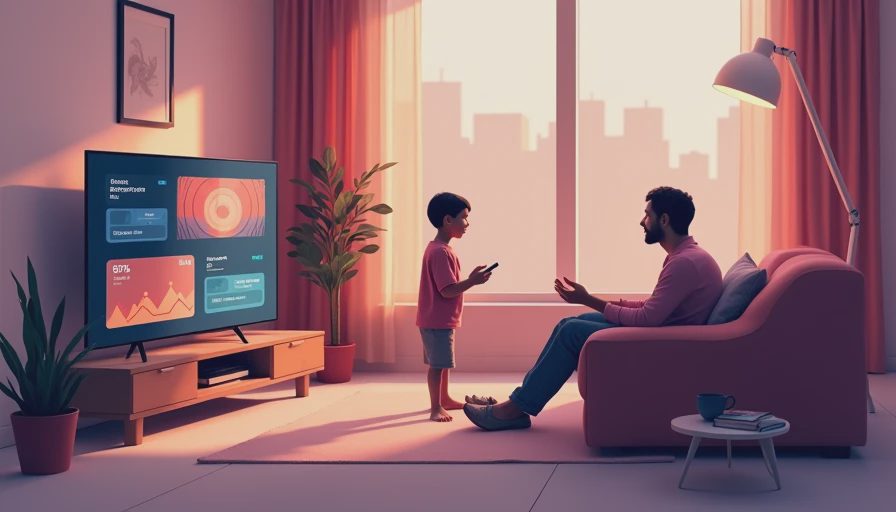
You might say, “This PIN is not here because I think you are bad at making choices. It is here because some shows are made for older viewers, and I am still responsible for helping you choose. If you find something confusing or disturbing, pause it and come get me.” That script sets a boundary without making curiosity shameful.
Do not confuse blocking with digital judgment
A child can encounter an upsetting scene through a trailer, autoplay recommendation, or another person’s profile even when your settings are sensible. Teach the response you want before the moment happens: stop the video, leave the screen, tell an adult, and do not forward the clip to friends. If the content includes sexual material, graphic violence, dangerous challenges, or a request for personal information, treat the conversation calmly and seriously.
This is where Roku parental controls have a natural limit. They can reduce accidental access, but they cannot coach a child through peer pressure or a confusing recommendation. Spend as much time practicing the response as you spend changing menus. A child who knows how to pause and ask for help is safer than a child who only knows that an invisible rule might punish them.
Also review voice features, mobile casting, and shared accounts. A child may use the Roku app as a remote, cast from a phone, or watch through a guest’s profile. You do not need to inspect every interaction, but you should know which routes exist in your home and agree on basic rules for them.
Build a family viewing agreement
Write down five practical decisions: which rooms allow streaming, what time screens end on school nights, which services are approved, whether headphones are allowed, and how purchases work. Include a rule for changing content settings: children ask first, and adults explain the answer. Keep the agreement short enough to remember. A page full of legal language will not help during a Saturday morning argument.
Review Roku parental controls once a month for the first few months, then whenever you add a service or replace a device. Ask what worked, what felt unfair, and what your child wants to handle independently next. If your child has followed the agreement, you might allow a later weekend viewing time. If a boundary was ignored, explain the specific repair, such as returning to shared viewing for one week.
A useful family check-in sounds like this: “What did the settings help with? Where did you still need my judgment? What should we change before next month?” That turns technology management into a skill-building conversation instead of a surprise inspection.
Tonight, this week, revisit later
Tonight, set the Roku purchase PIN, lock adult profiles, and check the three services your child uses most. This week, watch one program together and discuss why it fits the family rule. Ask your child to demonstrate what they would do if a disturbing recommendation appeared. Revisit later by reviewing the agreement after a birthday, a new device, a new streaming subscription, or a repeated boundary problem.
Do not chase perfect control. Platforms change, children mature, and families sometimes need different rules for siblings. Your job is to make the next safe choice easier while remaining available for the uncomfortable questions. Coach the skill, not just control the screen. The goal is not a perfect digital childhood; it is a child who can make better choices when an adult is not sitting beside the remote.


No letters yet — be the first guest to write.